About the product
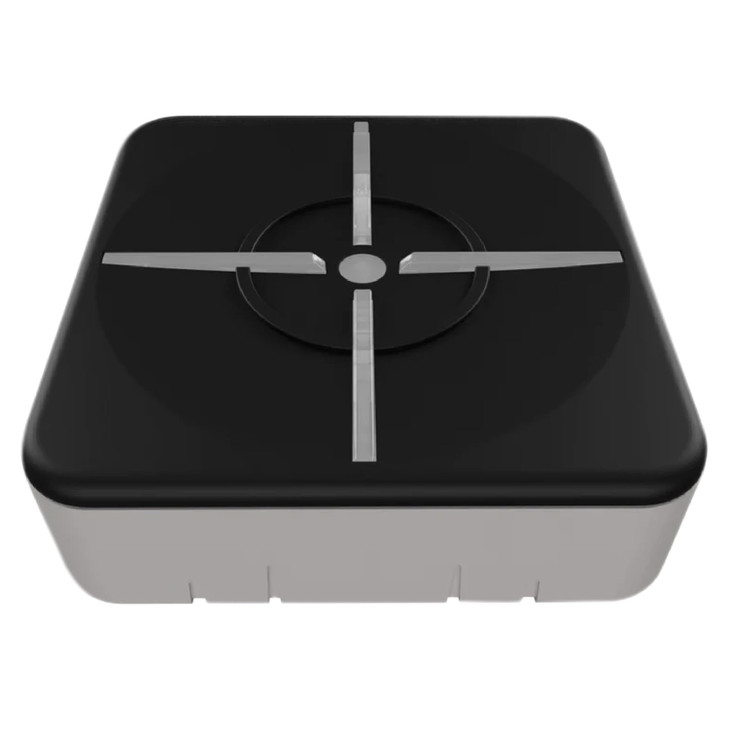
- NOT Plug and Play Advanced Setup Required XIM Matrix is designed for dedicated gamers who are comfortable with technical configuration. A Windows PC or Mac is REQUIRED for the firmware update. Before purchasing please visit xim.tech start to confirm compatibility with your setup. XIM Matrix is ideal for mouse and keyboard players gyro controller users gamers with disabilities and cross console users. This is an input adapter it does NOT add aim assist. Supports Xbox Series X
- S PS5 Xbox One PS4 and PC. IMPORTANT PS5 gameplay REQUIRES a wired Ethernet connection for both your PS5 and XIM MATRIX. Wi Fi is not supported for PS5 use. The Ethernet cable is NOT included.
- Precision and Flexibility XIM MATRIX features XIMs proprietary Smart Translator precision aim system and Smart Actions a built in input automation engine configured via the XIM Manager App. Scenarios Auto Fire Recoil Control Radial Menus Weapon Loadouts Looting Custom WASD Supported Input Devices Mice keyboards gyro controllers Xbox PS Switch controllers wired and wireless Bluetooth and XIM NEXUS. Unlike mice and keyboards gamepads vary in capability. So only one connected gamepad will be active at a time. NOTE Smart Actions is XIMs built in automation system only. NOT support third party scripting tools or external script file imports e.g. Cronus Zen ReWASD scripts .
- Mandatory Setup Complete ALL Steps Before Gaming Step 1 Firmware Update FIRST Even new devices may be out of date Connect XIM MATRIX to PC Mac and update at xim.tech downloads. Requires Windows 10 over 11 x64 or macOS 13+. Step 2 Download XIM Manager App Required for all configuration iOS 17+ Android 9+ Windows 10 over 11 x64. Bluetooth LE required. Download from Google Play App Store or xim.tech downloads. Do NOT pair via your phones Bluetooth settings pair through the App only. Step 3 PS5 Users Enable Remote Play on PS5. Connect both PS5 and XIM MATRIX via wired Ethernet. Register your PSN account in the XIM Manager App. PS4 set Communication Method to Use USB Cable.
- Troubleshooting Quick Reference 1.No LED Wont Power On Update firmware first at xim.tech downloads. Check USB cable and port. 2.App Wont Connect Enable Bluetooth LE NOT standard Bluetooth . Use iOS 17+ Android 9+ Win10 over 11 x64. Do NOT use your phones Bluetooth settings pair only through XIM Manager App. 3.Xbox PS4 Controller Not Detected Use genuine first party controllers only. Third party is not supported. 4.Mouse Disconnecting a wireless receiver in Port 1 can interfere with XIMs Bluetooth antenna move it away with a USB extension or use Port 2. 5.LED Status Cyan flashing ready to pair
- Cyan green flashing connected to App
- Yellow saving
- White pulsing communicating
- Community and Support XIM is a community driven ecosystem. A XIM is absolutely free to use. Includes all firmware Manager updates fixe feature improvements support for new games Config Cloud and technical support all completely free. Before purchasing please verify Hardware Compatibility List Not all mice keyboards controllers are supported. Check at xim.tech Game Support List Some games detect and block input adapters verify your game is supported at xim.tech Firmware and Downloads Available at xim.tech downloads requires registration Config Cloud Discover and share game configs at configs.xim.tech Community Forum Get help from XIM users worldwide at community.xim.tech
- Wired Device Support USB Ports 1 and 2 left and right sides Mice and Keyboards Xbox Elite Series and One controllers including licensed third party wired PlayStation DualSense DualShock 4 and 3 and Move Navigation controllers Switch Pro controllers XInput and DirectInput compatible controllers XIM NEXUS controllers Gyro Aim Support wired PlayStation DualSense DualShock 4 Switch Pro JoyCon IMPORTANT Xbox licensed third party WIRED controllers ARE supported but only ONE at a time. PlayStation and Nintendo genuine first party only. USB Port 3 back Authentication port for Xbox and PS4 console use. USB Port C back Connects XIM MATRIX to your console or PC.
- Wireless Device Support Bluetooth enabled Xbox controllers with Bluetooth PlayStation DualSense DualShock 4 and 3 Switch Pro controllers Switch JoyCons. XIM NEXUS Gyro Aim Support wireless PlayStation DualSense DualShock 4 Switch Pro JoyCon. Note When gaming with a wireless mouse additional setup may be required. See guide.xim.tech Troubleshooting Mice OUTPUT MODES Xbox Controller Xbox PC needs an Xbox controller for authentication. DualSense PS5 uses Remote Play over LAN or USB with a third party P5General. DualShock 4 PS4 PC needs a DualShock 4 v2. XInput PC needs nothing extra. MOUSE AND KEYBOARD output PC Xbox PS5 needs NO authentication controller.
- PROFESSIONAL GRADE NOT PLUG AND PLAY 1. Mandatory Firmware Update FIRST Connect to PC Mac and update at xim.tech downloads. Requires Windows 10 over 11 x64 or macOS 13+. Even new devices may need updating. 2. App Configuration Required XIM Manager App needed iOS 17+ Android 9+ Windows 10 over 11 x64 with Bluetooth LE . Download from xim.tech downloads. Do NOT pair via system Bluetooth settings. 3. PS5 Specifics Requires wired Ethernet connection for both PS5 and XIM MATRIX PS Remote Play enabled and PSN account registration in the App. Beta builds are optional the public release always works and older firmware can be reinstalled from xim.tech downloads.
- 4. Power Requirements High power RGB peripherals may cause disconnects. Disable RGB or use a powered USB hub. 5. Technical Resources All guides at guide.xim.tech. If not comfortable with technical setup this product may not be right for you. 6. BAN RISK NOTICE Use of input adapters may violate the Terms of Service of some game publishers and could result in account restrictions. Please check your games ToS before use. 7. Required game settings at xim.tech settings if aiming with a mouse set in game sensitivity to MAXIMUM and leave the rest at default. 8. If firmware wont update reboot change USB port and cable or disable extra antivirus.
- WARNING LIGHTS YOUR XIM IS USUALLY NOT BROKEN RED AND YELLOW BLINKING POWER FAULT a connected USB device drew too much power so XIM shut its ports down to protect itself 1. Fully charge any rechargeable device first 2. keyboards with heavy LED lighting can also trigger this. RAPID PURPLE timing errors check for loose USB connections faulty cables or hubs. REPEATED YELLOW lost the authentication controller in Port 3. RED GREEN BLUE AT STARTUP corrupted Config run the firmware tool from xim.tech downloads and press Factory Reset. Full guide at guide.xim.tech. Important NEVER pay for a Config. Free Configs at configs.xim.tech.